Design Professional Graphics in Canva with AI Assistance
Create logos, flyers, and social graphics like a pro. Screen Copilot guides you through Canva, teaching you design tools step by step.
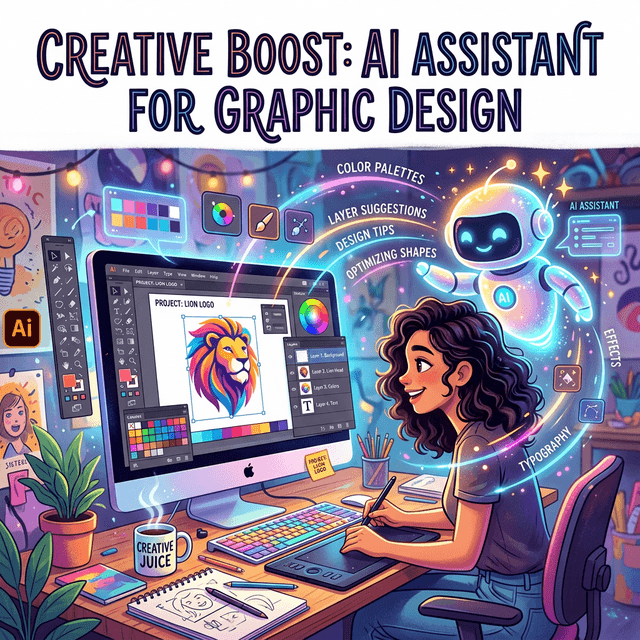
Whether you're a freelancer building your personal brand or a creative trying to design marketing materials for a client, visual appeal is everything. Canva is a powerful and accessible design tool, but staring at a blank canvas or trying to figure out how to layer elements can be intimidating if you don't have a background in graphic design.
Screen Copilot turns Canva into an interactive learning experience, guiding you through the design process on your screen until you're creating stunning graphics with ease.
Why Design is Hard for Non-Designers
Even with templates, non-designers often struggle with:
- Interface Confusion: Finding the right tools for transparency, grouping, layering, and background removal.
- Visual Hierarchy: Knowing what elements should be larger, how to balance text with imagery, and how to create a focal point.
- Brand Consistency: Ensuring colors, fonts, and styles remain cohesive across different graphics and campaigns.
How Screen Copilot Elevates Your Canva Designs
By watching your screen as you work in Canva, Screen Copilot offers real-time advice tailored to the exact graphic you're building.
Navigating Canva's Tools
Ask Screen Copilot, "How do I make the background transparent?" The AI will scan your Canva interface and tell you exactly where to click (e.g., "Click on the image, then select 'Edit image' in the top toolbar, and choose 'Background Remover'").
Design Principles in Practice
If your flyer feels cluttered, you can ask for feedback. Screen Copilot will look at your layout and suggest specific adjustments, such as "Try increasing the font size of the main headline to 48pt and adding more white space around the logo to make it pop."
Exporting and Sharing
When you're finished, Screen Copilot can guide you through the download settings, ensuring you save your logo as a high-resolution PNG with a transparent background, or your brochure as a print-ready PDF.
Pro Tip
When asking Screen Copilot for design critique, make sure your Canva canvas fits the browser window so the AI can see the entire composition and the toolbars clearly.
Design Confidence
With Screen Copilot, you don't just get a finished graphic; you learn the tools and principles of good design along the way. Create professional materials that impress your clients and elevate your freelance business—all with patient, guided AI assistance.